You need an ACCESS project with Jetstream2 (CPU) time. If you do not have one, start with the researcher guide and KB009.
1. Sign in to Exosphere
- Go to jetstream2.exosphere.app.
- Click Add allocation, then Add ACCESS Account.
- At the CILogon page choose ACCESS CI (XSEDE) and sign in with your ACCESS username and Duo.
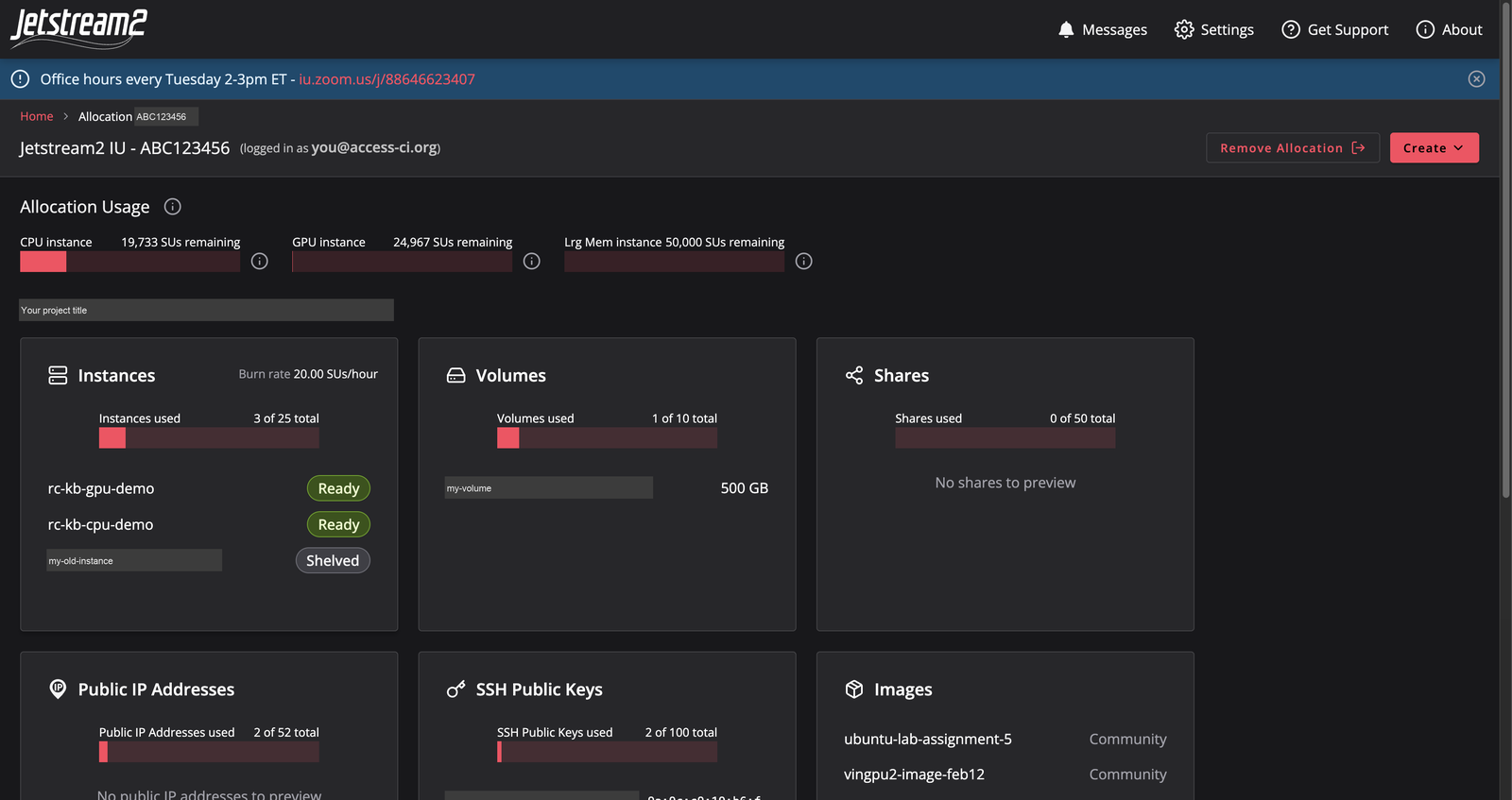
- Your ACCESS projects that have Jetstream2 time appear on the home page. Click one.
The allocation page shows how many SUs you have left for each resource, your instances, volumes, public IP addresses and SSH keys:
2. Make an SSH key (once per computer)
The web shell and web desktop work without a key, but SSH from your own computer needs one. On macOS or Linux (or Windows PowerShell):
ssh-keygen -t ed25519 -C "my-laptop-jetstream2" -f ~/.ssh/jetstream2
cat ~/.ssh/jetstream2.pub
Copy the single line that starts with ssh-ed25519. That is the public key, and it is safe to paste into Exosphere. Never share the file without .pub.
3. Create the VM
-
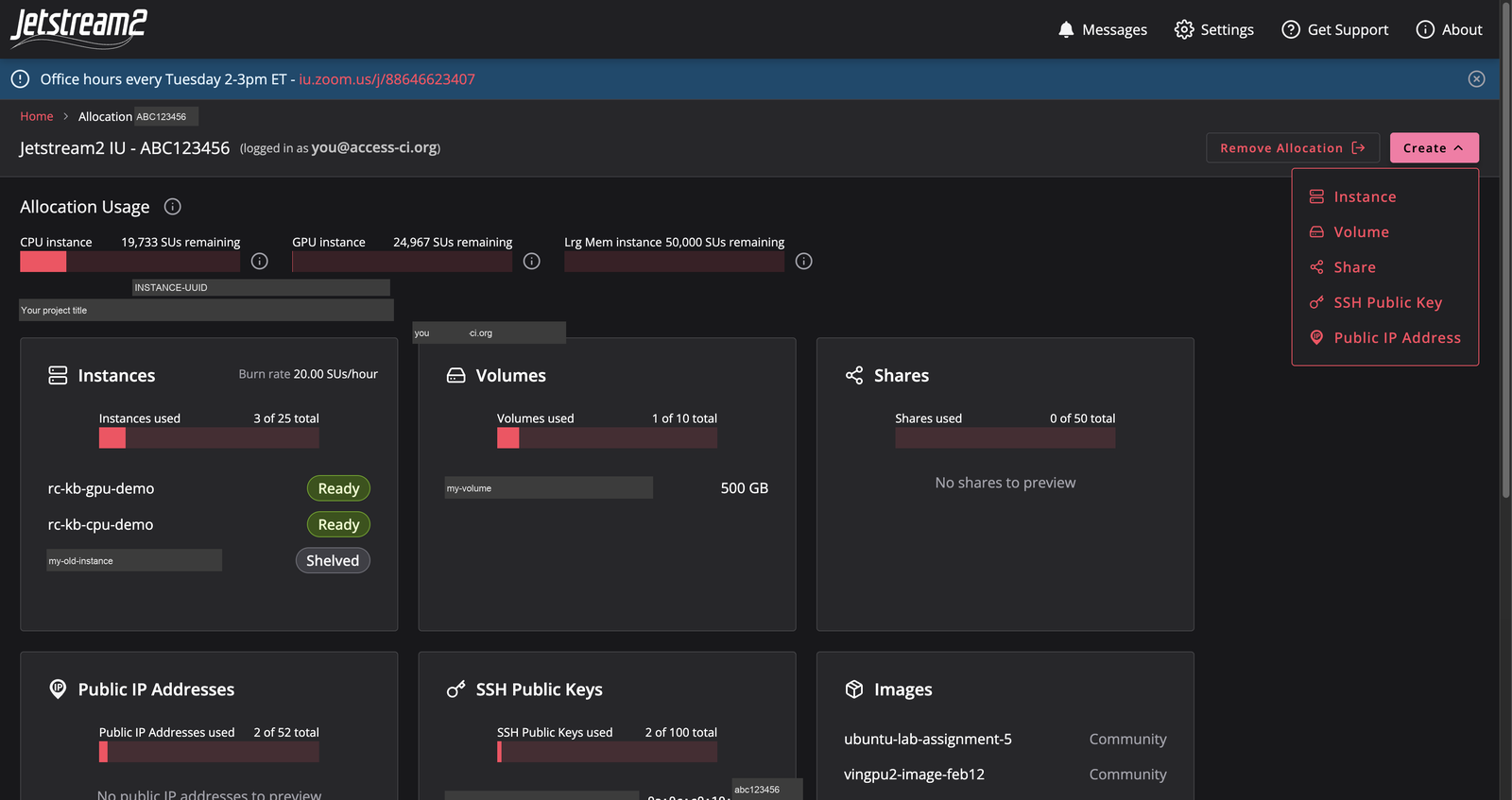
Click Create, then Instance.
-
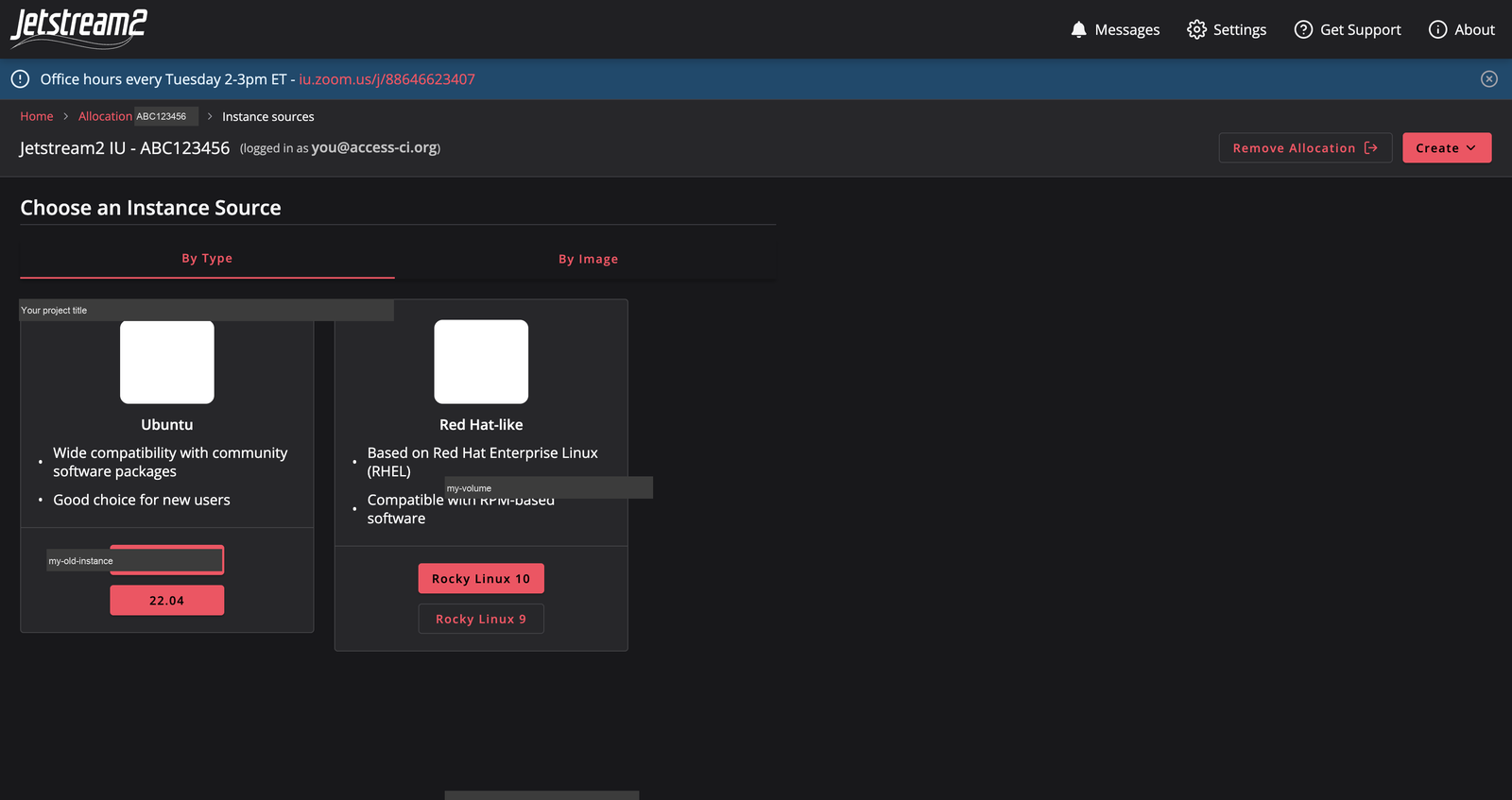
Choose an image. Ubuntu 24.04 (latest) is a good default.
-
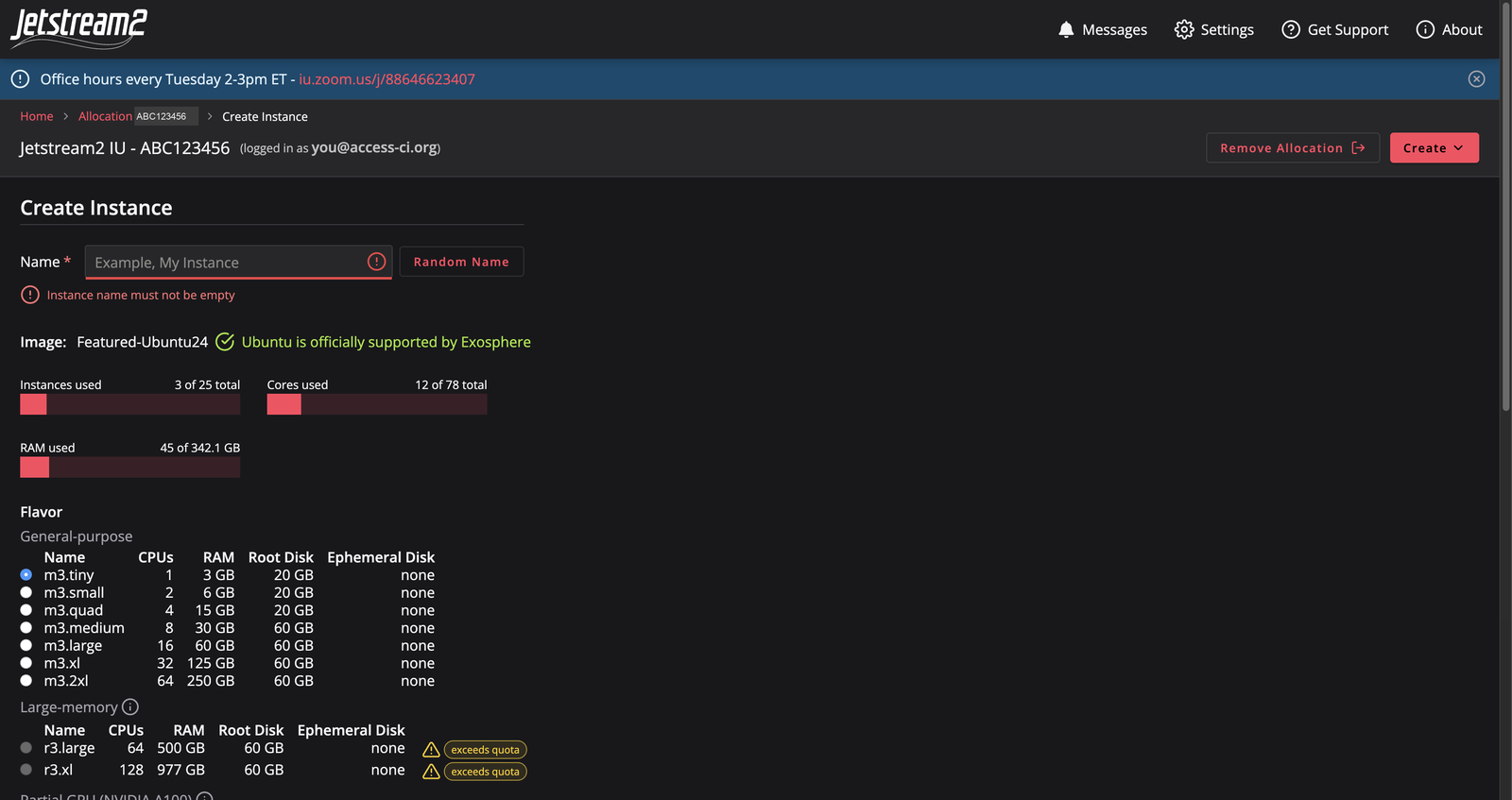
Give it a name and pick a flavor. m3.quad (4 cores, 15 GB RAM, 4 SUs per hour) is roughly a mid-range laptop. The bars show how much of your allocation's quota is in use.
- Scroll down:
- Enable web desktop? Choose Yes if you want a graphical desktop in the browser.
- Choose an SSH public key. Pick yours, or click Upload a new SSH public key, give it a name, paste the
ssh-ed25519 ...line and click Create.
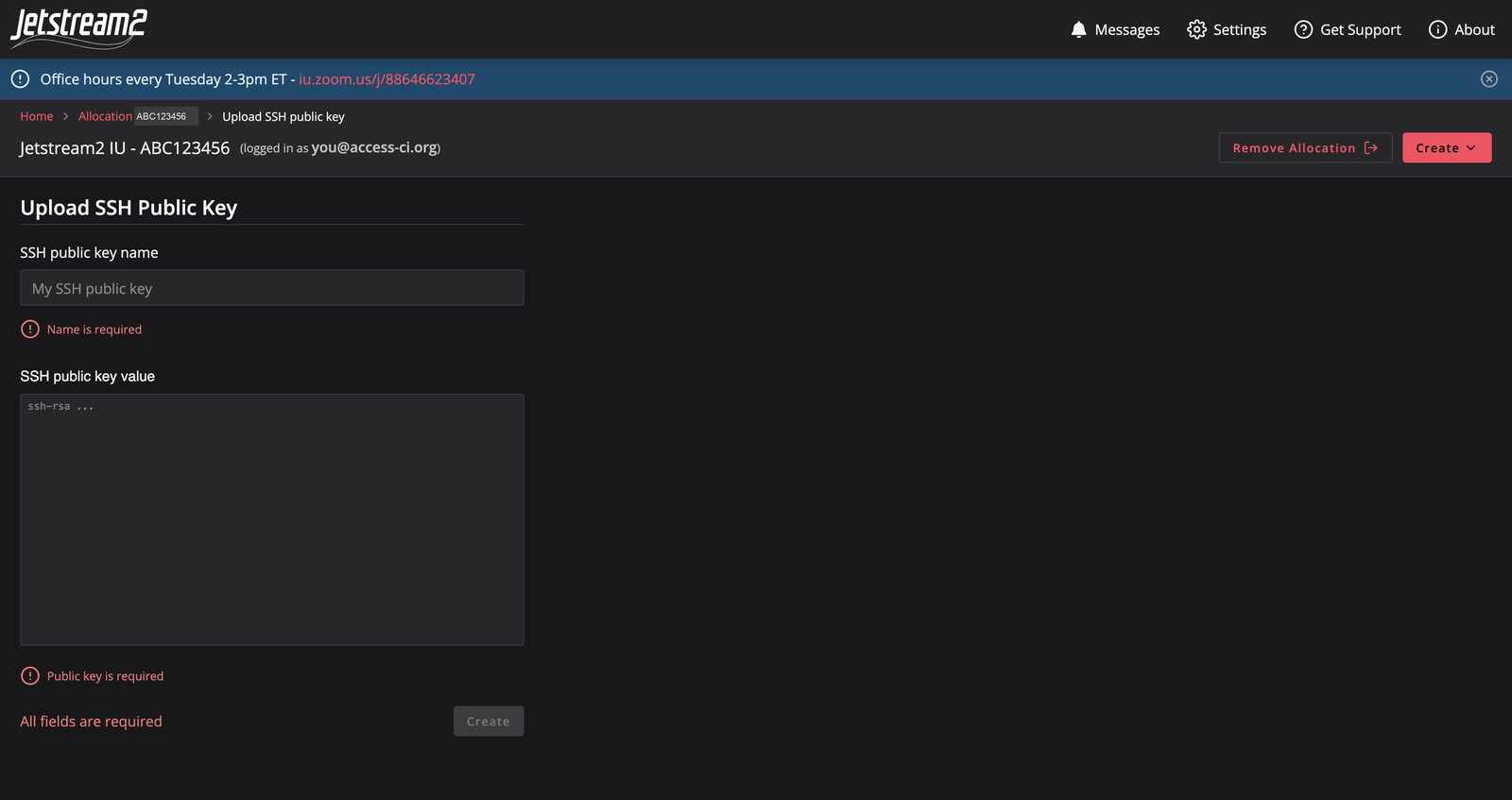
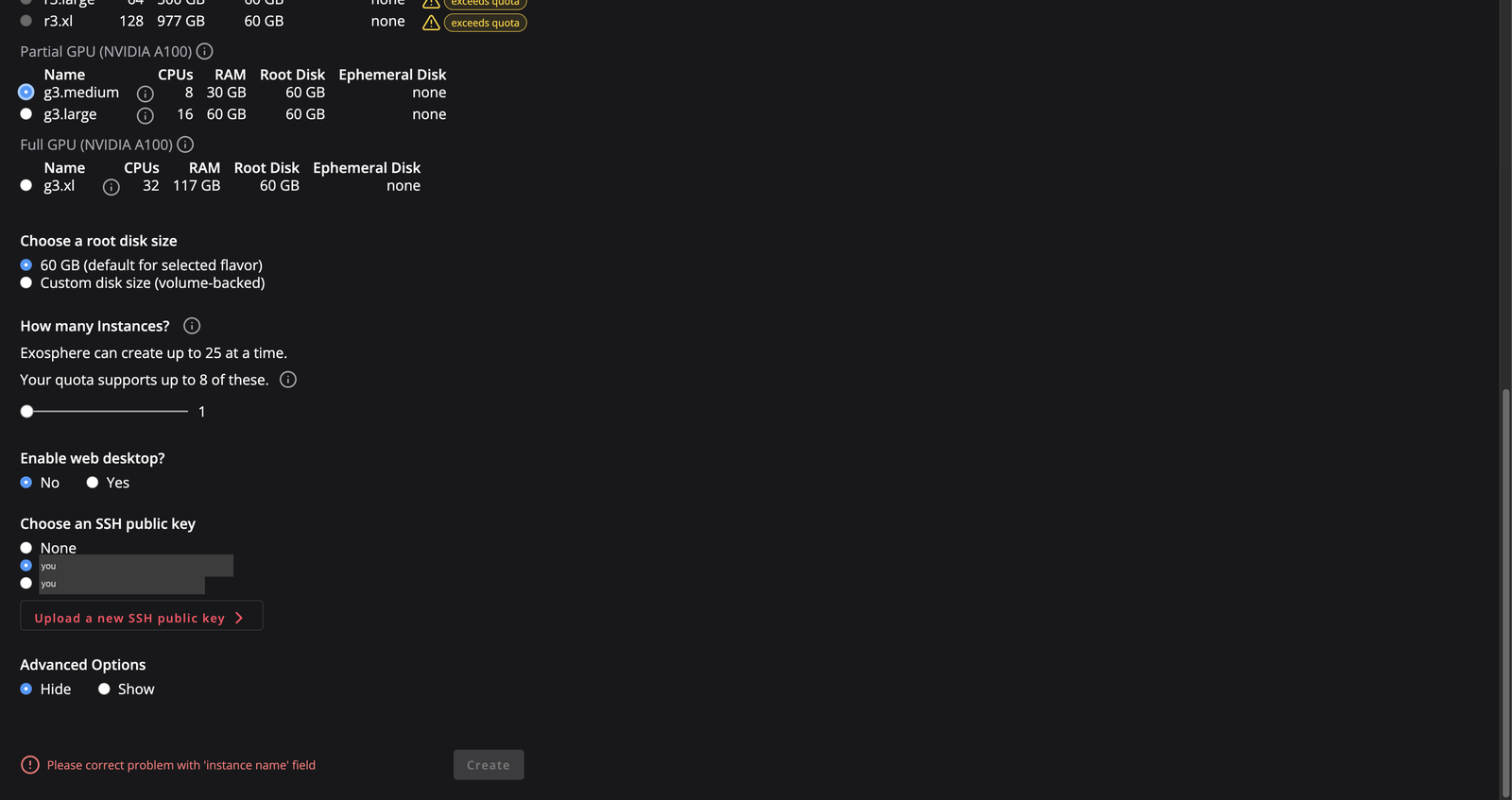
- Leave Advanced Options as they are (operating system updates on, automatic public IP address), and click Create.
The VM shows Building, then Running Setup, then Ready. In our test this took about five minutes.
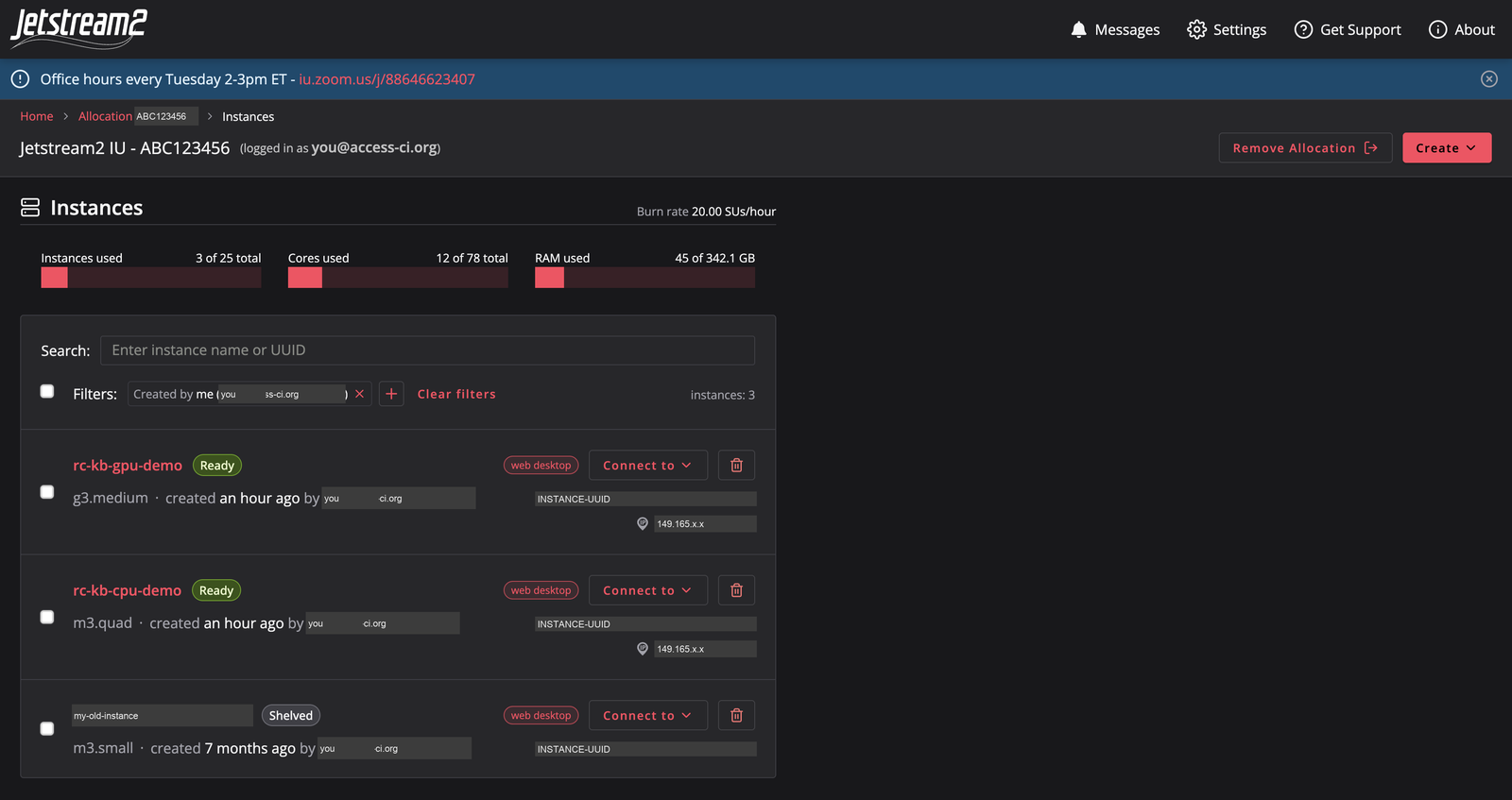
4. Connect
Click the VM's name to open its page. Interactions lists the ways in, and Credentials gives the hostname, public IP address and username (exouser).
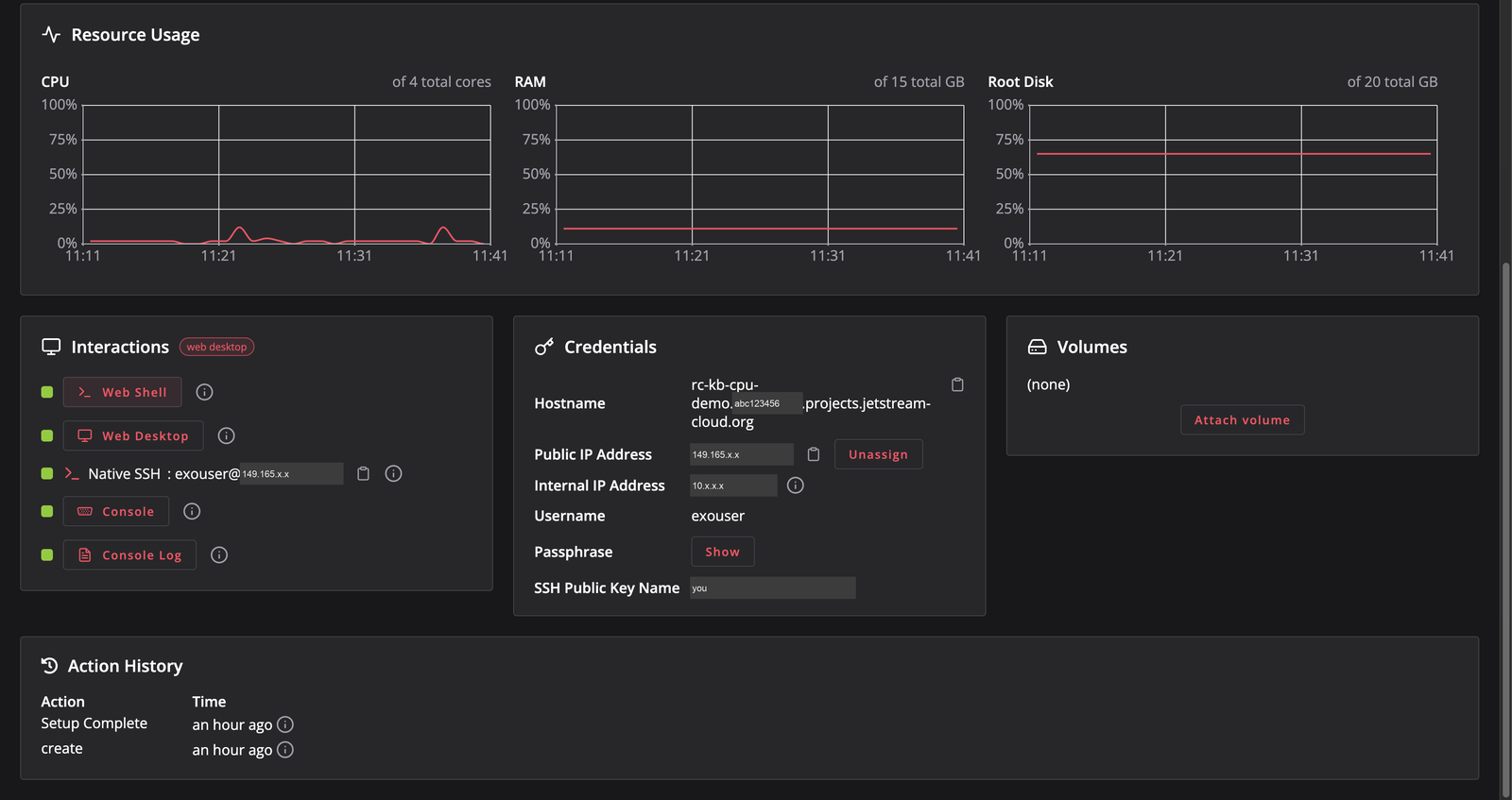
Web shell (no setup)
Click Web Shell. A terminal opens in a new browser tab, already logged in as exouser.
Web desktop
Click Web Desktop for a full Ubuntu desktop in the browser, with Firefox, a terminal, RStudio and MATLAB in the dock:
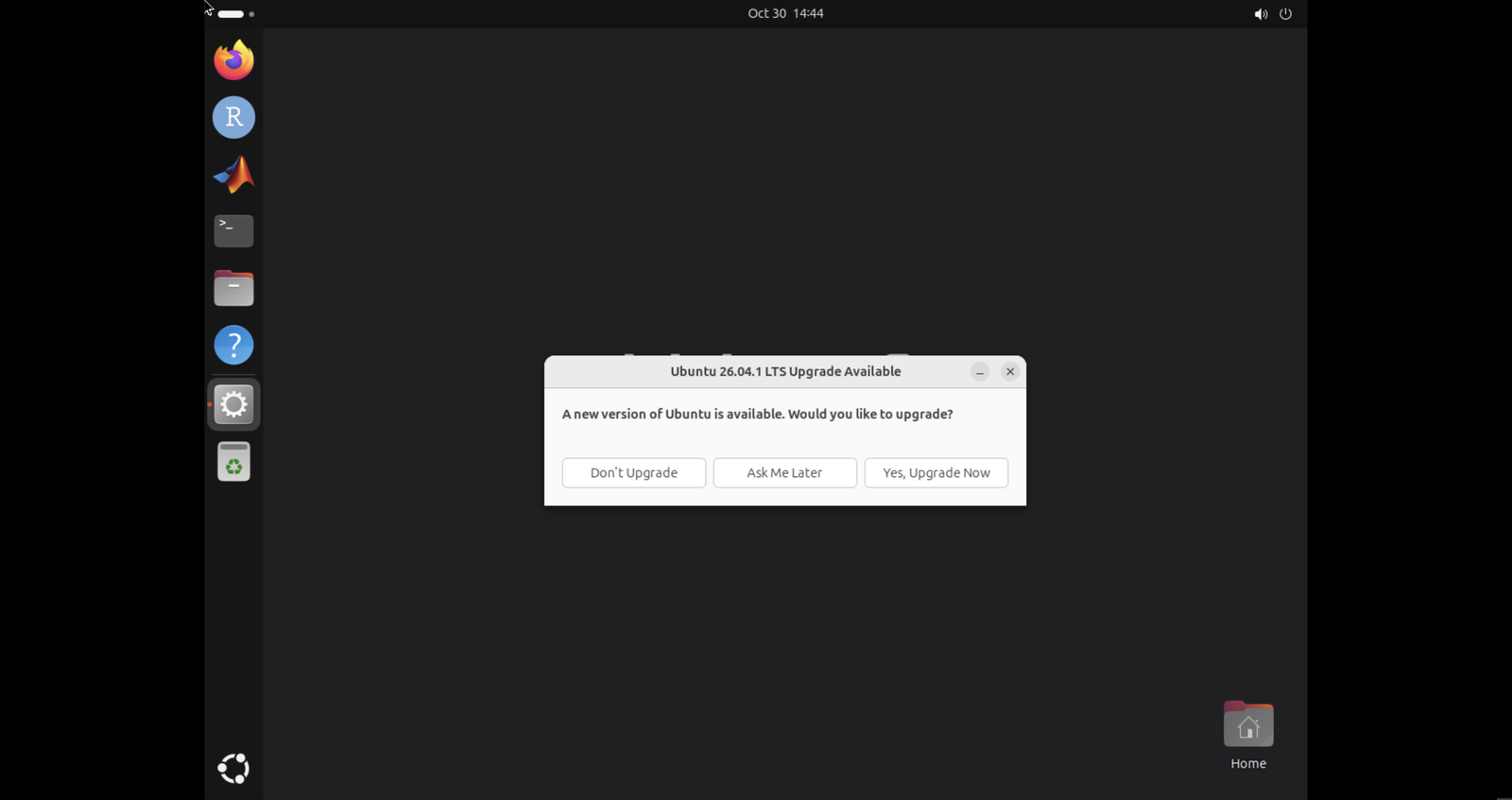
If Ubuntu offers to upgrade to a new release, click Don't Upgrade. Release upgrades on a VM can break the Jetstream2 setup; make a new VM from a newer image instead.
SSH from your computer
Copy the Native SSH line from the instance page, adding your key:
ssh -i ~/.ssh/jetstream2 exouser@<public-ip>
To save typing, add an entry to ~/.ssh/config:
Host my-js2
  HostName <public-ip>
  User exouser
  IdentityFile ~/.ssh/jetstream2
Then ssh my-js2, and scp results.csv my-js2: to copy a file across.
5. Look around and install software
These are the commands we ran on a fresh m3.quad, with what they returned:
cat /etc/os-release | head -1   # PRETTY_NAME="Ubuntu 24.04.5 LTS"
nproc                           # 4
free -h                         # about 14 GiB total
df -h /                         # 19 GB root disk
sudo -n true && echo ok         # ok: you have sudo
Ubuntu packages:
sudo apt update
sudo apt install -y htop tmux
Docker is already installed:
sudo docker run --rm hello-world
Python (3.12) with a virtual environment, for example JupyterLab:
python3 -m venv ~/jl
~/jl/bin/pip install jupyterlab
~/jl/bin/jupyter lab --version
The Jetstream2 software collection is loaded with modules:
module avail                 # R, apptainer, intel-oneapi, matlab, miniforge, nvhpc, rstudio ...
module load miniforge        # gives you conda
module load apptainer        # Singularity/Apptainer containers
Keep long jobs running after you disconnect with tmux: start tmux, run your work, press Ctrl-b then d to detach, and later tmux attach to return.
6. Shelve it when you stop
A running VM uses SUs every hour, even when idle. When you finish for the day or the week, open the VM's page, choose Actions, then Shelve, and confirm. Shelving shuts the VM down and keeps its disk. Unshelve brings it back; check the instance page for its address afterwards.
More on shelving, sizes, volumes and deleting: Managing Jetstream2 VMs and SUs.
7. If something goes wrong
- Permission denied (publickey): the key you pass with
-iis not the one chosen when the VM was created. Use the web shell instead, and add your key to~/.ssh/authorized_keyson the VM. - Host key changed warning after a VM was rebuilt or given a new address: remove the old entry with
ssh-keygen -R <public-ip>. - No public IP address: Jetstream2 has warned that public IPv4 addresses are scarce. The web shell and web desktop still work without one.
- Anything else: help@jetstream-cloud.org, or contact Research Computing.