1. Which GPU size
Jetstream2 GPU sizes come with an NVIDIA A100. The two smaller sizes share a card with other users through NVIDIA vGPU; the largest gives you a whole card.
| Flavor | Cores | RAM | GPU | GPU memory | SUs per hour |
|---|---|---|---|---|---|
| g3.medium | 8 | 30 GB | 25% of an A100 | 10 GB | 16 |
| g3.large | 16 | 60 GB | 50% of an A100 | 20 GB | 32 |
| g3.xl | 32 | 120 GB | a whole A100 | 40 GB | 64 |
How to choose:
- Start with g3.medium to set up your software and test on small data. Jetstream2 itself advises budgeting high but starting low, especially for GPUs.
- Move to g3.large or g3.xl when your model or batch no longer fits in GPU memory, or you need the full card's speed. You can resize a partial-GPU VM later.
- L40S and H100 sizes (including two- and four-GPU VMs) exist but must be requested from help@jetstream-cloud.org with a justification.
- Tools that need direct GPU access, such as the CUDA debugger
cuda-gdband some profilers, do not work on the partial (vGPU) sizes. Use g3.xl for those.
2. Get GPU time
Jetstream2 GPU is a separate ACCESS resource from Jetstream2 (CPU). In the ACCESS allocations portal, exchange credits for Jetstream2 GPU (one credit buys one SU). If GPU sizes do not appear when you create a VM, your project has no Jetstream2 GPU time yet.
For planning: a g3.medium used 6 hours a day on 20 working days is about 1,900 SUs a month (16 x 6 x 20). Left on all month, it uses about 11,500.
3. Create the GPU VM
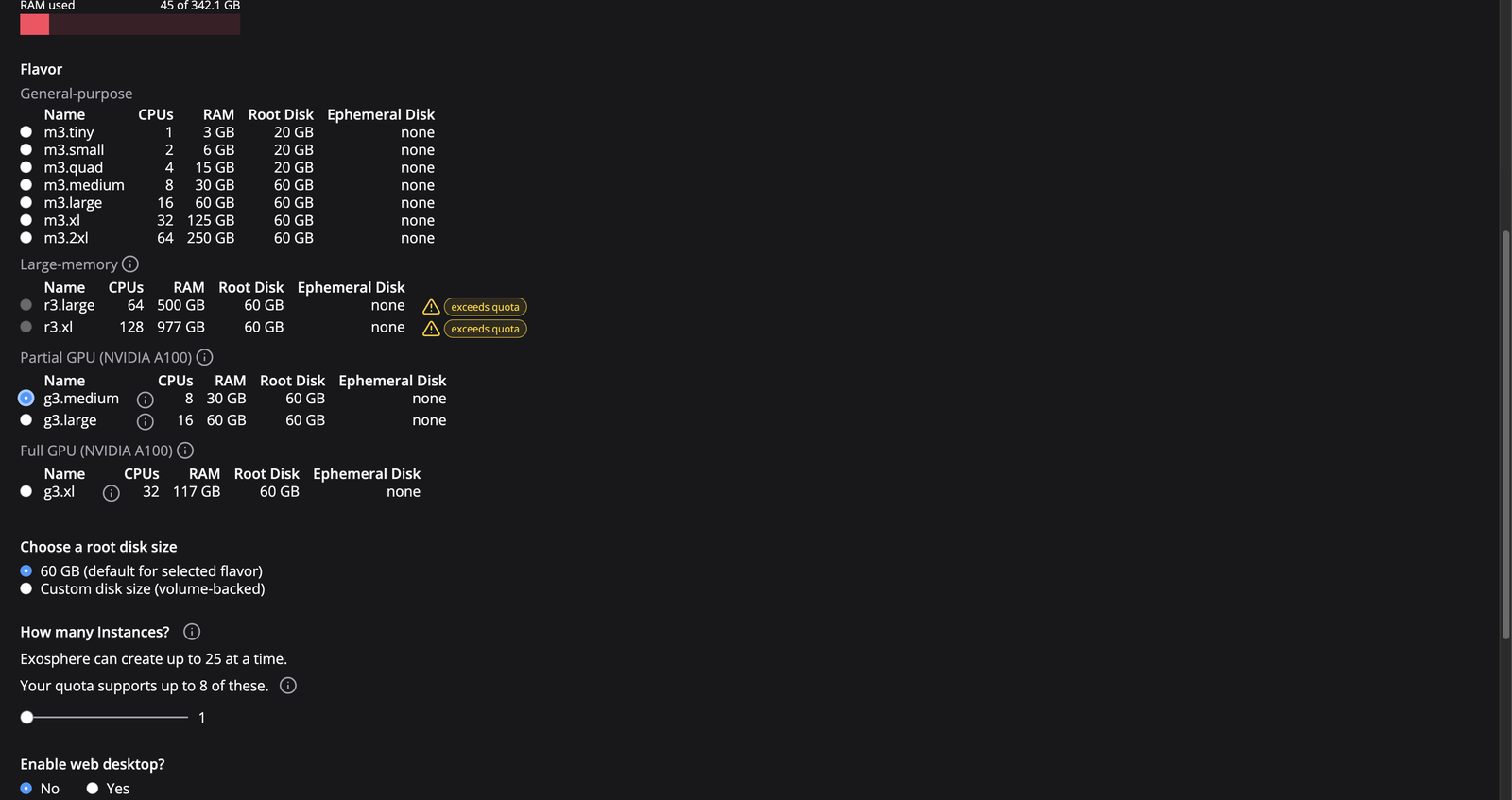
Follow Your first Jetstream2 VM, with one change: under Flavor, pick a size from Partial GPU (NVIDIA A100) or Full GPU (NVIDIA A100).
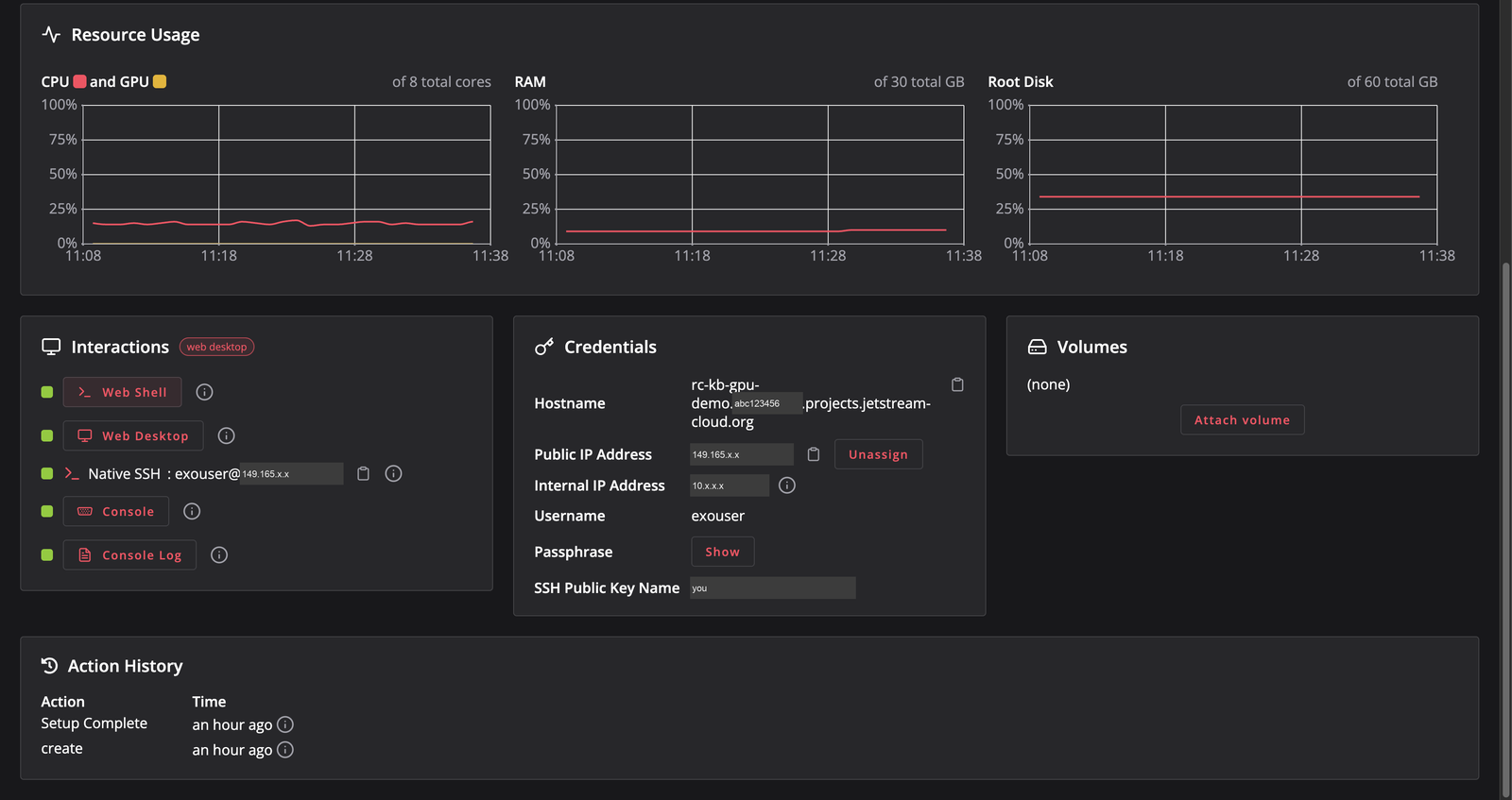
The VM page shows the GPU flavor and its burn rate (16 SUs per hour for g3.medium):
A full-card (g3.xl) VM can take longer to build, because Jetstream2 installs the GPU driver during setup.
4. Check the GPU
Open the Web Shell (or SSH in) and run:
nvidia-smi
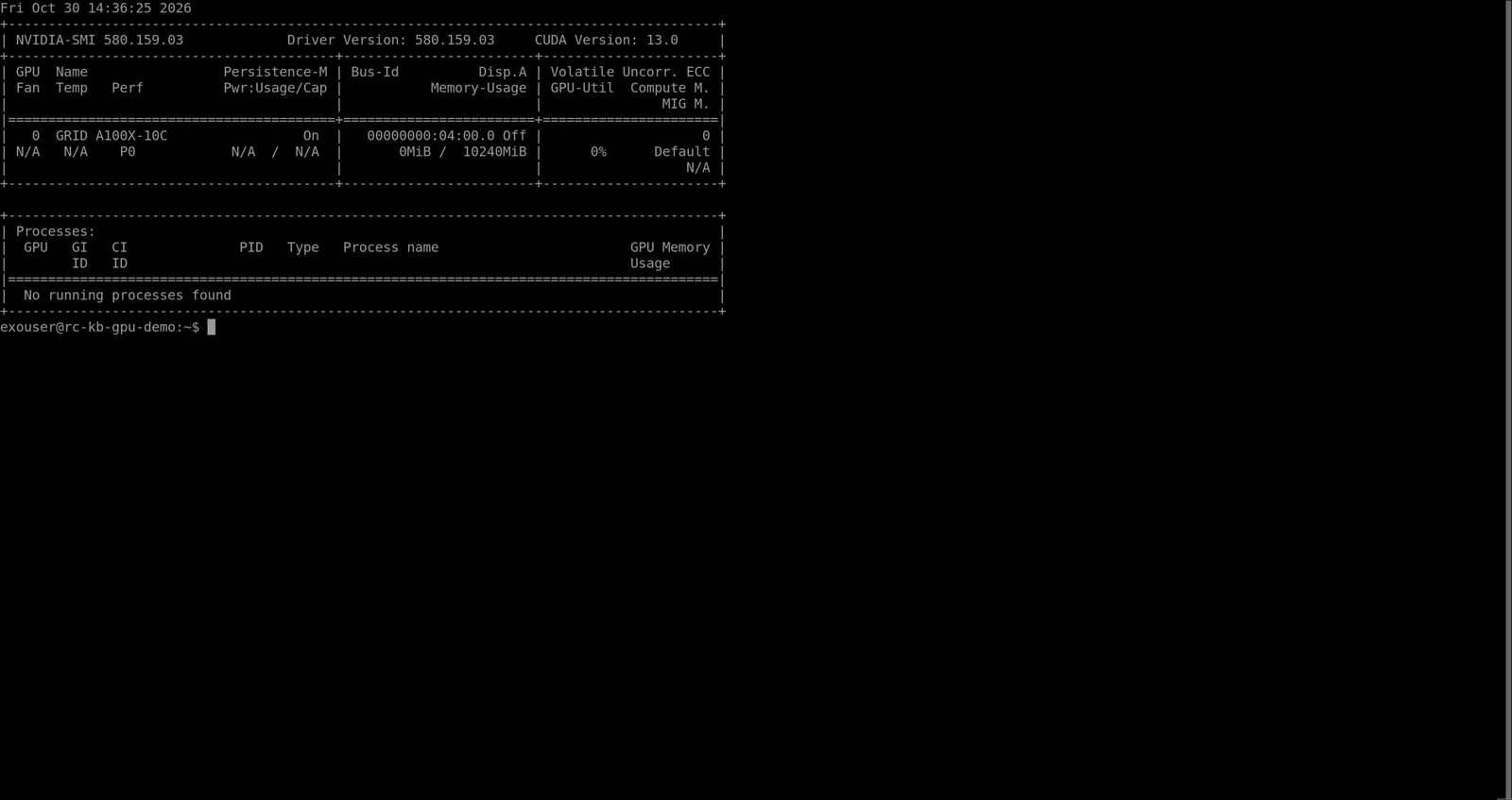
On a g3.medium we saw GRID A100X-10C (a 10 GB share of an A100), driver 580 and CUDA 13.0. The driver is already installed; do not install another NVIDIA driver.
5. PyTorch in five minutes
Install PyTorch into a virtual environment, using the CUDA wheels from pytorch.org:
python3 -m venv ~/torch-env
source ~/torch-env/bin/activate
pip install --upgrade pip
pip install torch --index-url https://download.pytorch.org/whl/cu128
That download is about 3 GB and took under two minutes in our test. Then check that PyTorch sees the GPU and time a matrix multiply:
import torch, time
print(torch.__version__, torch.cuda.is_available())
print(torch.cuda.get_device_name(0))
free, total = torch.cuda.mem_get_info()
print(f"GPU memory: {total/2**30:.1f} GiB total, {free/2**30:.1f} GiB free")

n = 8192
a = torch.randn(n, n, device="cuda", dtype=torch.float16)
b = torch.randn(n, n, device="cuda", dtype=torch.float16)
torch.cuda.synchronize(); t = time.time()
for _ in range(20):
    c = a @ b
torch.cuda.synchronize()
print(f"20 matmuls: {time.time() - t:.2f} s")
Our g3.medium printed True, GRID A100X-10C, about 10 GiB of GPU memory, and ran the 20 multiplies in about a third of a second. On a partial-GPU size you may get more speed than your share when the rest of the card is idle, so do not treat one quick timing as a benchmark.
Other routes work the same way: module load miniforge for conda environments, Docker with NVIDIA's container images, or Apptainer (module load apptainer).
6. Keep GPU costs under control
GPU sizes burn SUs 2 to 16 times faster than a small CPU VM, so:
- Shelve the GPU VM whenever you are not running something on it. Do your editing and data preparation on a cheap CPU VM, or on your laptop.
- Run long training in
tmuxor withnohup, and save checkpoints so you can stop and restart. - Watch SUs remaining on the allocation page, and the burn rate on each VM.
- Keep data and checkpoints on a volume or in an OSN bucket, not only on the VM's own disk.
7. If something goes wrong
- No GPU flavors in the list: your project has no Jetstream2 GPU time. Exchange credits for Jetstream2 GPU.
-
GPU not usable after a kernel update: on Ubuntu, rebuild the driver modules (from the Jetstream2 GPU FAQ):
ls /usr/lib/modules | sudo xargs -n1 /usr/lib/dkms/dkms_autoinstaller startthen reboot.
- Out of GPU memory: use a smaller batch, mixed precision, or a larger flavor.
- GPU capacity: Jetstream2 has posted notices about scarce GPU capacity. If a GPU VM will not build, try again later or ask help@jetstream-cloud.org.
- More: Jetstream2 GPU FAQ, or contact Research Computing.