1. Where your SUs go
Open your allocation in Exosphere. The top of the page shows SUs remaining for CPU, GPU and large-memory time, and the Burn rate shows how many SUs per hour your running VMs use right now. Each VM's page shows its own burn rate.
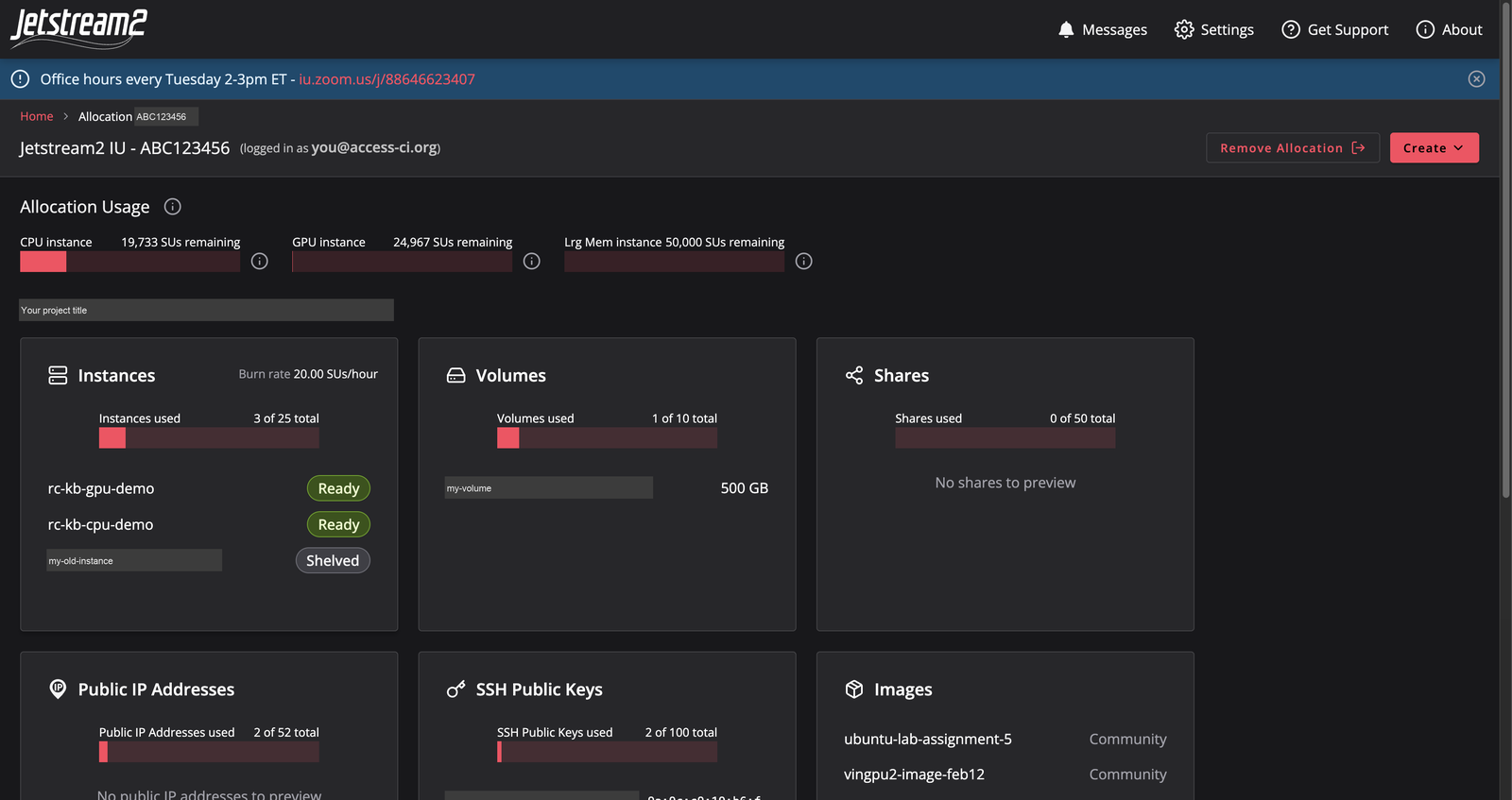
A VM uses SUs for every hour it is running, whether or not anything is happening on it. The rules of thumb:
- Shelve VMs at the end of the day or week.
- Resize down a VM that sits mostly idle.
- Delete VMs, volumes and images you no longer need. Volumes and images count against your storage quota.
2. The Actions menu
On a VM's page, Actions offers:
| Action | What it does | SUs |
|---|---|---|
| Shelve / Unshelve | Shuts the VM down and frees its hardware; the disk is kept. Takes a few minutes each way. | None while shelved |
| Suspend / Resume | Like sleep: running programs are frozen and come back as they were. For a few days at most. | Charged at a reduced rate |
| Lock / Unlock | Prevents accidental changes or deletion. Unlock before shelving or resizing. | No effect |
| Resize | Restarts the VM on a different flavor (more or fewer cores, RAM or GPU). | New flavor's rate |
| Image | Saves the whole root disk as an image you can launch copies from. | Storage quota |
| Reboot | Restarts the VM. | No change |
| Delete | Destroys the VM and its root disk. Cannot be undone. | Stops all use |
Shelve and unshelve
Actions, then Shelve, then Yes at "Are you sure you want to shelve?". The VM shows Shelving, then Shelved. To bring it back, choose Unshelve. A shelved VM accepts no connections, so a server that others need to reach has to stay running; make it the smallest flavor that works.
Resize
When a VM runs out of memory, choose a larger flavor. When it sits idle most of the time, choose a smaller one. The VM restarts during a resize, so save your work first. Jetstream2 advises against resizing full-card GPU VMs (g3.xl).
Image (snapshot and clone)
Image captures the VM's root disk. Use it before a risky change, or to launch several identical VMs for a class. An image takes several minutes to become active, and it counts against your storage quota.
3. Volumes for your data
A volume is a separate disk you attach to a VM. It survives when the VM is deleted, and it can be moved to another VM. Use one for data and results you want to keep apart from the operating system.
- Create, then Volume: give it a name and a size in GB.
- On the volume (or on the VM's page under Volumes), choose Attach and pick the VM.
- Exosphere shows where the volume is mounted on the VM; check with
df -hon the VM.
Volumes use your allocation's storage quota (the Volumes card shows how many you have). Detach and delete volumes you no longer need. They keep counting against your quota until you delete them, even when no VM uses them.
Back up anything important somewhere off Jetstream2, for example CephRDS or an OSN bucket. Allocations end.
4. Delete what you are finished with
Actions, then Delete removes a VM and its root disk for good. Before deleting:
- copy off any results;
- detach any volume you want to keep;
- make an Image if you might want the same setup again.
Also check the Volumes card and the Images list for leftovers from earlier projects.
5. Command line (OpenStack CLI)
For scripting, or for managing many VMs, use the OpenStack command-line client.
- Sign in to Horizon at js2.jetstream-cloud.org (Authenticate using ACCESS CILogon), choose your allocation, and create an application credential. Download the
openrcfile it offers. Each allocation needs its own credential. -
Install the client:
python3 -m venv ~/os-cli source ~/os-cli/bin/activate pip install python-openstackclient -
In a fresh terminal, load the credential and try a command:
source ~/os-cli/bin/activate source ~/Downloads/app-cred-openrc.sh openstack server list openstack flavor list -
Common actions:
openstack server shelve <name>
openstack server unshelve <name>
openstack server resize --flavor m3.small <name>
openstack server delete <name>
Treat the openrc file like a password. Do not share it or commit it to Git, and give each person and each computer its own application credential. See Authenticating against the OpenStack CLI.
6. When an allocation is running low
- Shelve or resize VMs first.
- Exchange more ACCESS credits for Jetstream2 in the ACCESS allocations portal, or move to a larger ACCESS project type (KB009).
- Renew before your ACCESS project's end date. Unused SUs do not carry over.
- Questions about sizing: help@jetstream-cloud.org, or contact Research Computing.