
Accessing CephRDS via Graphical S3 Clients
Scope: Research Computing Services Audience: UCR Faculty, Postdocs, Researchers & Students Last Updated: Aug 19, 2026
layout: default title: “Accessing CephRDS via Graphical S3 Clients” parent: Knowledge Base —
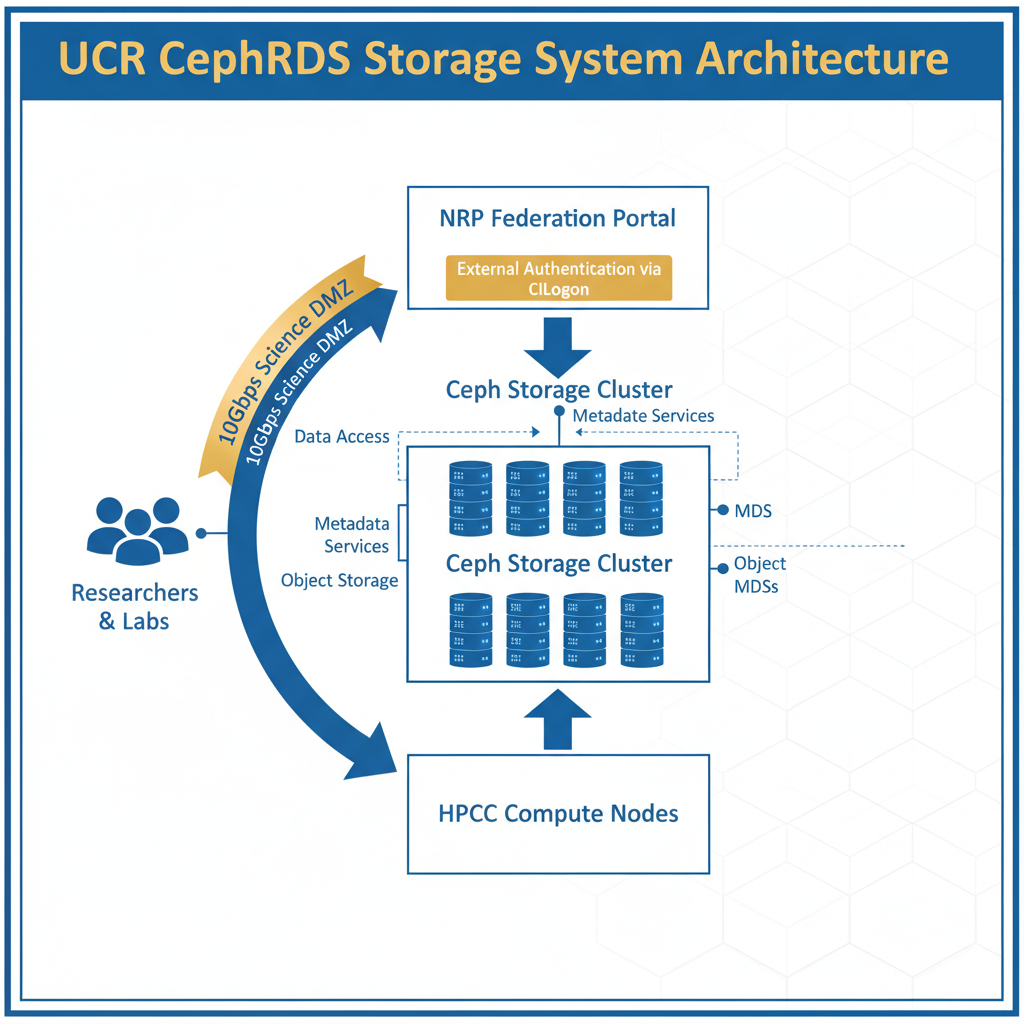
While command-line tools like rclone offer maximum performance, many researchers prefer the ease of a visual, drag-and-drop interface for managing their data.
Since CephRDS uses the S3 protocol, you must use an S3-compatible graphical client.
Mac & Windows: Cyberduck
Cyberduck is our officially recommended graphical client for macOS and Windows. It is free, open-source, and extremely reliable for managing S3 connections.
Connection Settings for Cyberduck:
- Open Cyberduck and click Open Connection.
- From the dropdown at the top, select Amazon S3.
- Server:
rds.ucr.edu - Port:
443(Ensure the URL showshttps://) - Access Key ID: Enter your provisioned Ceph Access Key
- Secret Access Key: Enter your provisioned Ceph Secret Key
- Click Connect.
Linux: Universal S3 UI (us3ui)
For Linux users, we recommend Universal S3 UI (us3ui). It is a lightweight, native, and fast open-source client that handles large bucket listings effortlessly.
Installation
You can download the pre-compiled binary for Linux from the official GitHub repository.
Connection Settings for us3ui:
- Launch the application and click the + button to add a new connection.
- Name: CephRDS (or your preference)
- Endpoint:
rds.ucr.edu - Access Key: Enter your provisioned Ceph Access Key
- Secret Key: Enter your provisioned Ceph Secret Key
- Bucket Name: Enter your specific bucket name (e.g., your_netid-hdd-bucket)
- Region: (Leave blank)
- Prefix: (Leave blank)
- Use SSL (HTTPS): MUST BE CHECKED
- Click Connect.